 English
 Deutsch
 Español
 Français
 Italiano
 Português
 Русский
 العربية
 हिन्दी
 日本語
日本語 简体中文
简体中文

 Android
 iOS
iOS Mac
Mac Windows


The Error: "Getting Windows Ready, Do Not Turn off Your Computer"
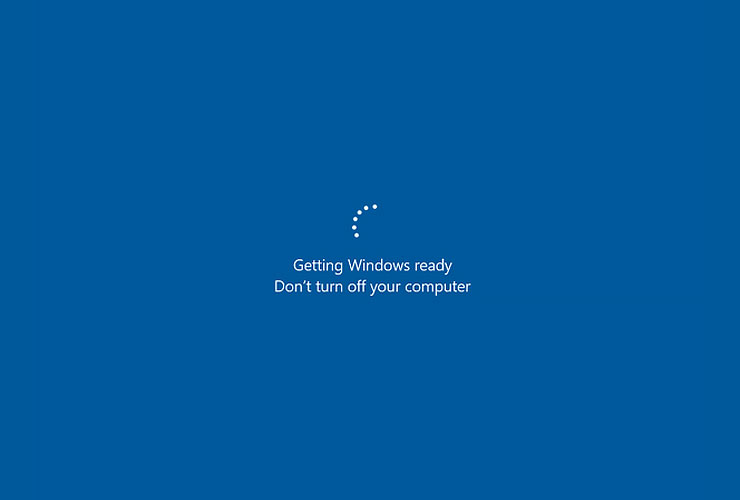
This common Windows error message appears on the screen during startup, shutdown, updates, or system resets, indicating that the operating system is processing background tasks. It can occur on Windows 11, 10, 8, or 7 and affects both laptops and desktops. The screen may freeze or loop indefinitely, preventing normal boot-up. While it's often temporary, prolonged stalls can signal underlying issues.
- What Causes This Error?
Several factors can lead to the "Getting Windows Ready" screen getting stuck:
- **Heavy background processing:** Windows may be handling multiple tasks simultaneously, such as downloading updates, installing files, or configuring applications.
- **Damaged or corrupted files:** System files, drivers, or boot configurations might be conflicted or broken.
- **Viruses or malware:** Malicious software can interfere with system processes.
- **Insufficient resources:** Low memory (RAM), high disk usage, or inadequate storage space during updates.
- **Interrupted operations:** Power failures, forced shutdowns during updates, or canceled resets can trigger loops.
- **Incompatible software or updates:** Recently installed programs, drivers, or Windows updates that conflict with your hardware.
- **Network issues:** Unstable internet during feature updates that require downloads.
The duration varies based on your system's specs and the tasks involved—faster hardware and fewer installed apps mean quicker resolution.
How Long Should You Wait?
If the progress indicator (spinning dots or percentage) is still moving, give it time. Microsoft recommends waiting up to 2-3 hours, as large updates can take longer. Check your computer's hard drive LED light—if it's blinking, processes are active. If nothing changes after 3 hours, proceed to troubleshooting.
Troubleshooting Steps
Start with the simplest fixes and escalate if needed. Always back up important data before advanced steps, using tools like external drives or cloud storage. If your PC is under warranty, avoid actions that might void it.
1. Perform a Power Reset
This clears temporary memory without data loss and can resolve minor glitches.
- Ignore the message and turn off the computer (hold the power button for 10-30 seconds if needed).
- Unplug all peripherals (e.g., USB devices, external drives, keyboards, mice).
- Disconnect the power cable (or remove the battery on laptops).
- Press and hold the power button for 30 seconds to drain residual charge.
- Reconnect the power cable (or battery), plug in essentials only, and turn on the PC.
- If it boots, check for updates or run a virus scan.
2. Check Your Internet Connection (If Updating)
A poor connection can halt downloads.
- Ensure Ethernet cables are secure or Wi-Fi signal is strong.
- Test connectivity on another device; restart your router if needed.
- If wireless, move closer to the router or switch to wired.
3. Boot into Safe Mode with Networking
This loads minimal drivers to troubleshoot.
- Force shutdown by holding the power button during boot three times to enter Windows Recovery Environment (WinRE).
- Go to Troubleshoot > Advanced options > Startup Settings > Restart.
- After restart, press 5 or F5 for Safe Mode with Networking.
- Once in, run antivirus scans, uninstall recent software (via Settings > Apps), or check for updates.
- Restart normally.
4. Run Startup Repair
This automated tool fixes boot issues.
- Enter WinRE (as above or using Windows installation media/USB).
- Select Troubleshoot > Advanced options > Startup Repair.
- Choose your admin account, enter password, and click Continue.
- Wait for the scan and repairs to complete, then restart.
5. Run System File Checker (SFC) and Check Disk (CHKDSK)
These repair corrupted files and disk errors.
- In WinRE, go to Troubleshoot > Advanced options > Command Prompt.
- Type `sfc /scannow` and press Enter (wait for completion).
- Then type `chkdsk C: /f /r` (replace C: with your system drive) and press Enter; type Y if prompted.
- Exit and restart.
6. Delete Problematic Files
If a specific file is corrupt.
- In WinRE Command Prompt, type `C:` (or your drive), then `cd Windows\System32\LogFiles\Srt` and `notepad SrtTrail.txt`.
- Note any mentioned corrupt files (e.g., vsock.sys).
- Navigate to the file's directory (e.g., `cd C:\Windows\System32\Drivers`) and type `del filename.sys`.
- Restart.
7. Perform System Restore
Revert to a previous working state.
- In WinRE: Troubleshoot > Advanced options > System Restore.
- Select a restore point before the issue started.
- Follow the wizard; note that this may remove recent apps but keeps personal files.
8. Uninstall Recent Updates or Software
Conflicts from new installs.
- In WinRE: Troubleshoot > Advanced options > Uninstall Updates (for Windows updates).
- Or boot to Safe Mode: Settings > Update & Security > Windows Update > View update history > Uninstall updates.
- For software: Settings > Apps > Sort by install date > Uninstall suspects.
9. Reset Your PC
As a last resort before reinstall.
- In WinRE: Troubleshoot > Reset this PC.
- Choose "Keep my files" or "Remove everything" (backup first!).
- Follow prompts; this reinstalls Windows while preserving or removing data.
10. Clean Install Windows
If nothing works, use installation media.
- Create a bootable USB via Microsoft's Media Creation Tool on another PC.
- Boot from it, select Custom install, and format the system drive.
- Reinstall and activate with your product key.
For Azure VMs or advanced scenarios, collect memory dumps for analysis, but this is typically for IT pros.
Prevention Tips
- Regularly update Windows but schedule them during off-hours.
- Maintain free disk space (at least 20GB for updates).
- Run antivirus scans weekly.
- Avoid interrupting updates or resets.
- Create system restore points before major changes.
- Back up data routinely.
 Go back